Set Up a TFTP Server on Windows Using Tftpd64
- EN
- JA
Table of Contents
Tftpd64 is software for Windows that provides TFTP, SNTP, SYSLOG, DHCP, and DNS servers.
This article explains how to set up a TFTP server on Windows using Tftpd64.
#
Install Tftpd64
The Tftpd64 installer is available as a file named Tftpd64-<version>-setup.exe on the Tftpd64 official website. Download and run the installer.
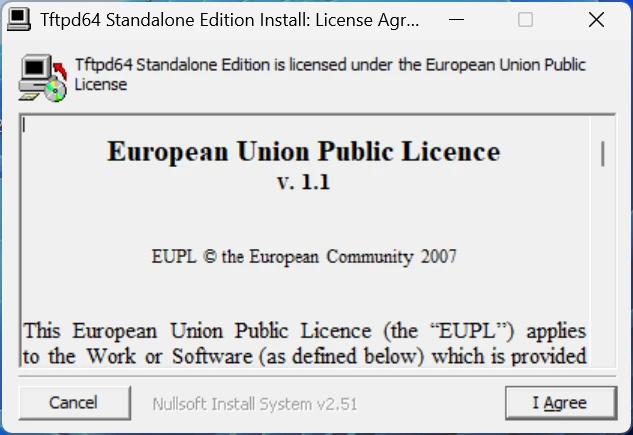
The license is displayed. Review it and select I Agree to continue.
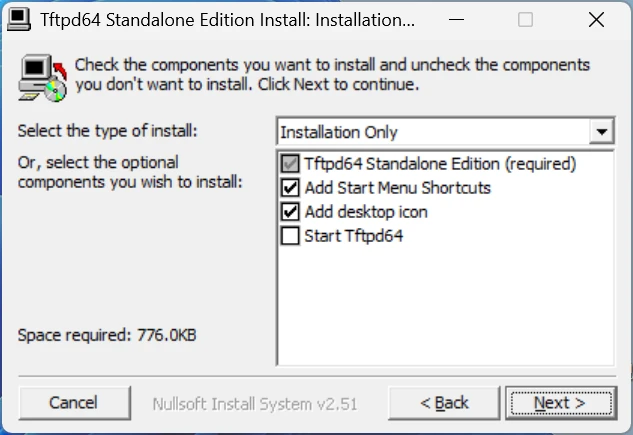
You can configure the installation options. After configuring them, select Next to continue.
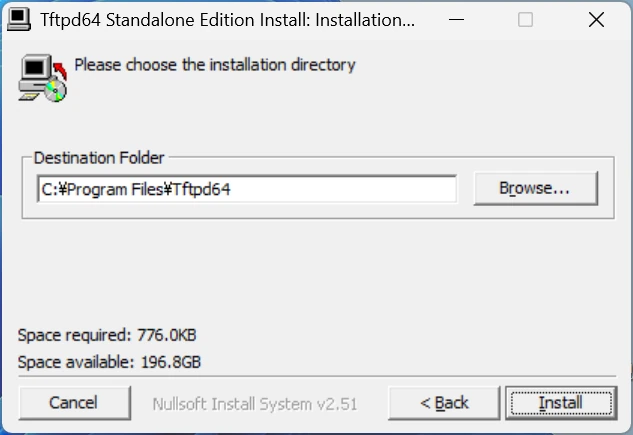
Choose where to install Tftpd64. After configuring the location, select Install to start the installation.
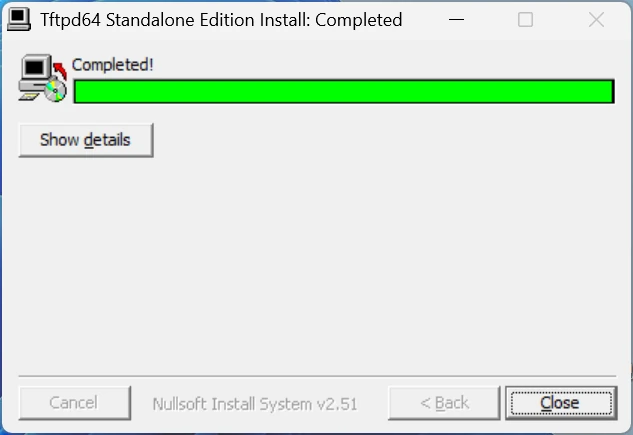
When Completed! is displayed on the screen, the installation is complete. Select Close to exit the installer.
#
Use Tftpd64
Run the installed tftpd64.exe to launch Tftpd64.
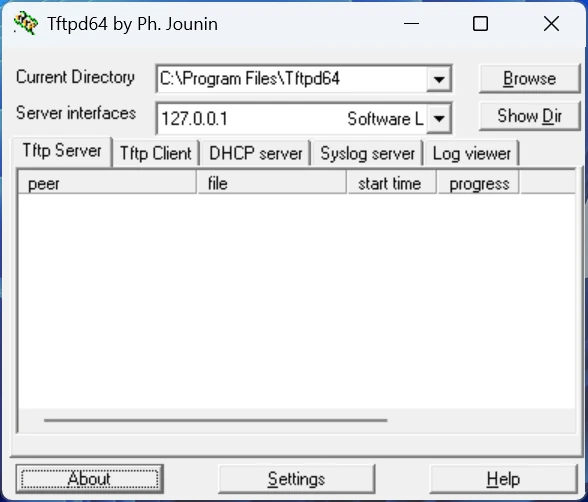
After launching Tftpd64, select Settings to open the settings screen.
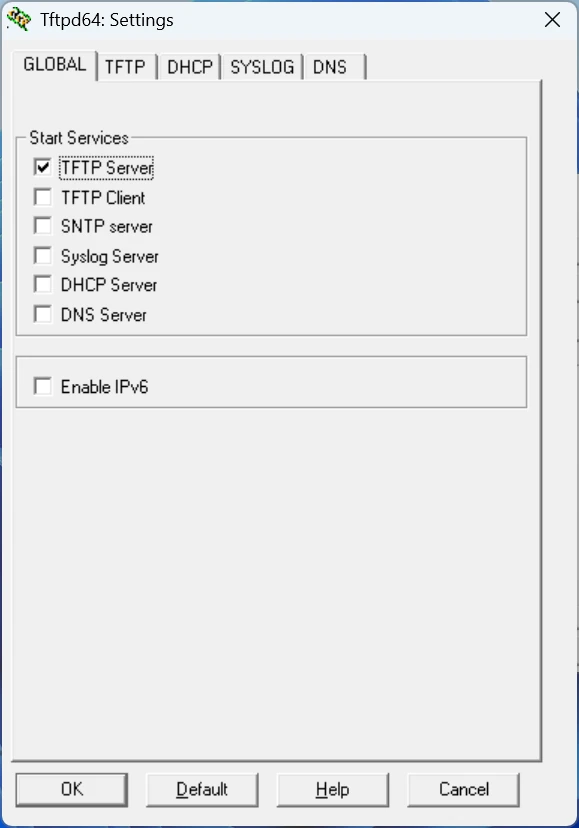
The GLOBAL tab on the settings screen contains settings for Tftpd64 as a whole. Since only the TFTP server is used in this example, select only TFTP Server.
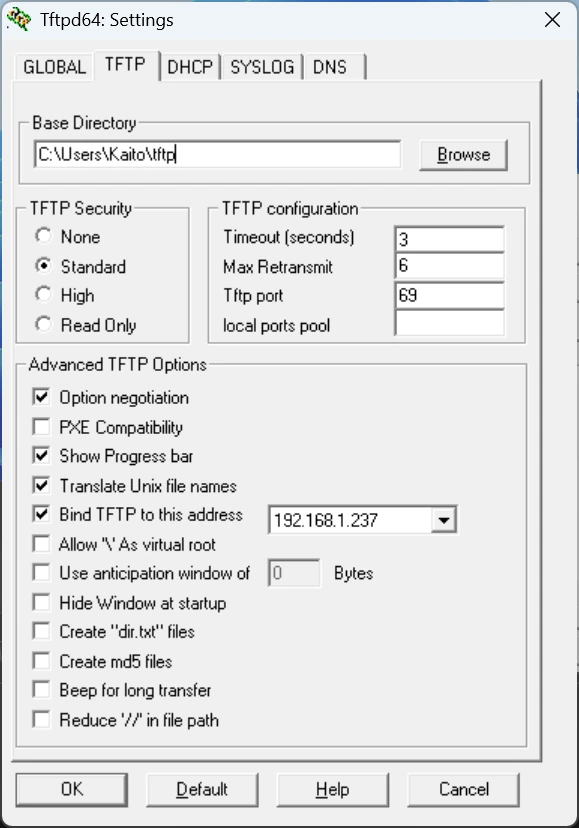
The TFTP tab contains settings related to TFTP. Set the base directory published by the TFTP server in Base Directory.
By default, Tftpd64 accepts connections from TFTP clients on all network interfaces. Select Bind TFTP to this address and specify an IP address to choose the address on which the server is published.
After configuring the settings, select OK to apply them.
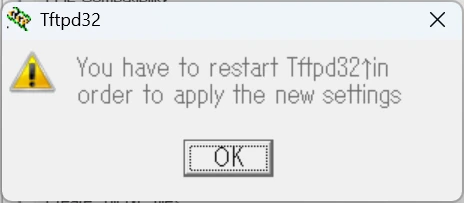
A confirmation dialog is displayed. Select OK to restart Tftpd64. The TFTP setup is now complete.
Place an appropriate file in the directory and try retrieving it from a TFTP client.
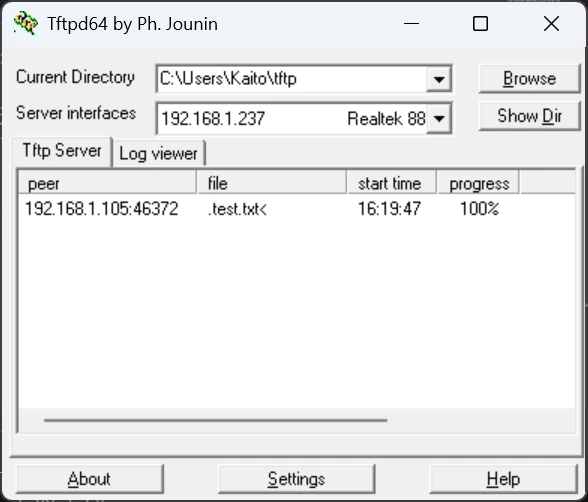
You can confirm that the TFTP client can access the server.
If you cannot access the server, review the IP address and port settings and check whether security software is blocking the connection.