Install Ubuntu on a Raspberry Pi
- EN
- JA
Table of Contents
In addition to Raspberry Pi OS, you can also boot Ubuntu on a Raspberry Pi.
This article explains how to install Ubuntu on a Raspberry Pi.
#
Install Raspberry Pi Imager
Install a tool called Raspberry Pi Imager to write Ubuntu to a microSD card.
Download the tool from the official website and install it on your PC.
#
Write Ubuntu to a microSD Card
Write Ubuntu to a microSD card. Insert the microSD card into your PC and launch Raspberry Pi Imager.
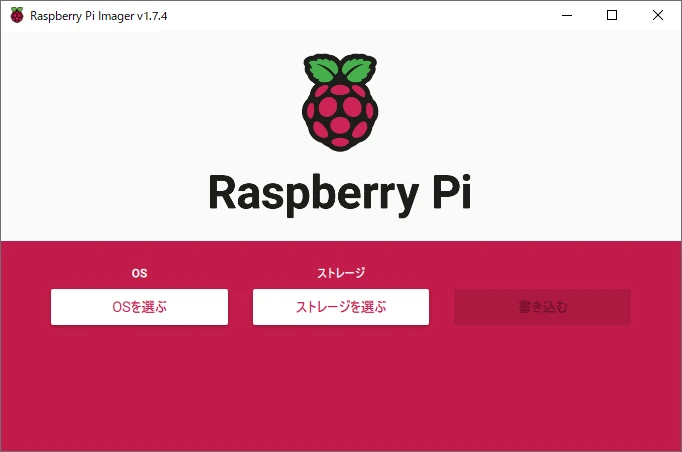
Select OS, Other general-purpose OS, and Ubuntu in that order to display the list of Ubuntu versions available for installation.
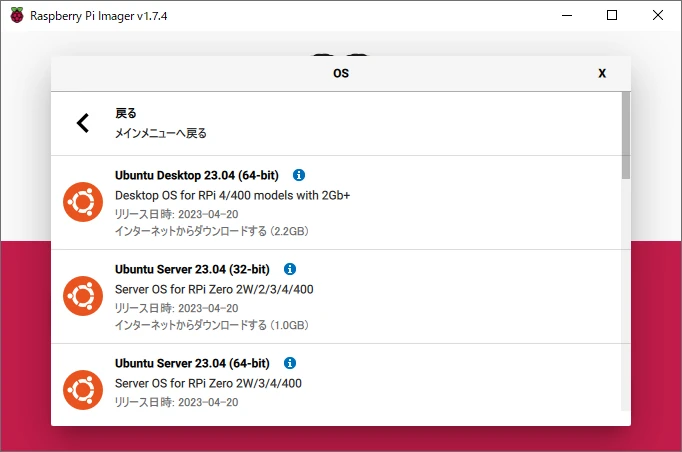
Select the OS you want to install.
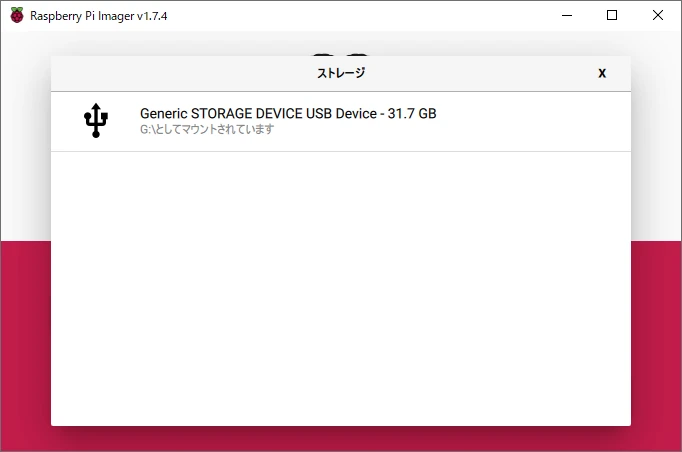
After selecting the OS, select the microSD card to which you want to write Ubuntu from Storage.
If the OS and storage selections are correct, select Write to start writing the image.
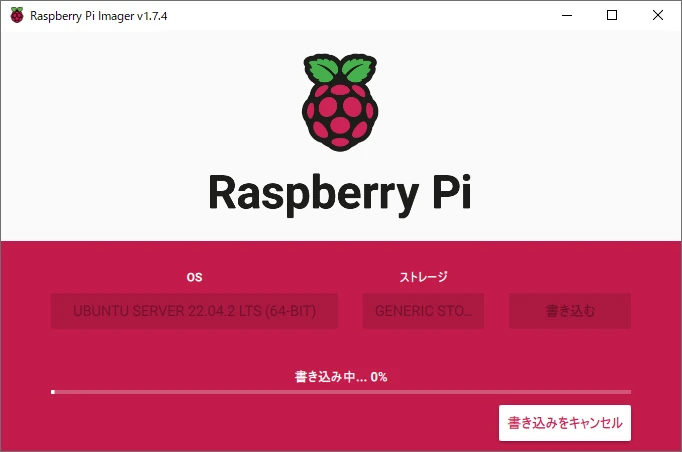
Wait a while for the writing process to complete.
#
Boot Ubuntu
Insert the microSD card containing Ubuntu into the Raspberry Pi and turn it on.
When prompted to log in, enter ubuntu as the username and password.
Ubuntu 22.04.2 LTS ubuntu tty1

ubuntu login: ubuntu
Password:
On the first login, you are prompted to change the password. Enter a new password of your choice.
You are required to change your password immediately (administrator enforced).
Changing password for ubuntu.
Current password:
New password:
Retype new password:
Ubuntu is now ready to use on the Raspberry Pi.